Background
Recently I had to migrate various VMs from VMware VSphere to the IONOS cloud provider using a KVM based hypervisor. Prior to migration, I decided to test out the process with some local VMs in VMware workstation, this proved to be quite simple for my linux VMs, but after provisioning a VPS, and mounting the disk images for my windows machines, I would be faced with this error:
iPXE 1.0.0+git-20190125.36a4c85-5.1 -- Open Source Network Boot Firmwa
://ipxe.org
Features: DNS HTTP iSCSI NFS TFTP AOE ELF MBOOT PXE bz Image Menu PXEXT

met0: 02:01:1b:34:89:35 using virtio-net on 0000:00:06.0 (open)
[Link:up, TX:0 TXE : 0 RX:0 RXE : 0]
Conf iguring (net0 02:01:1b:34:89:35)
net0: 217.154.233.66/255.255.255.255 gw 217.154.233.1
metO: fe80: :1:1bff :fe34:8935/64
Nothing to boot: No such file or directory (http://ipxe.org/2d03e13b)
No more network devices

Booting from Floppy ...
Boot failed: could not read the boot disk

No bootable device.
Or on an UEFI compatible volume:
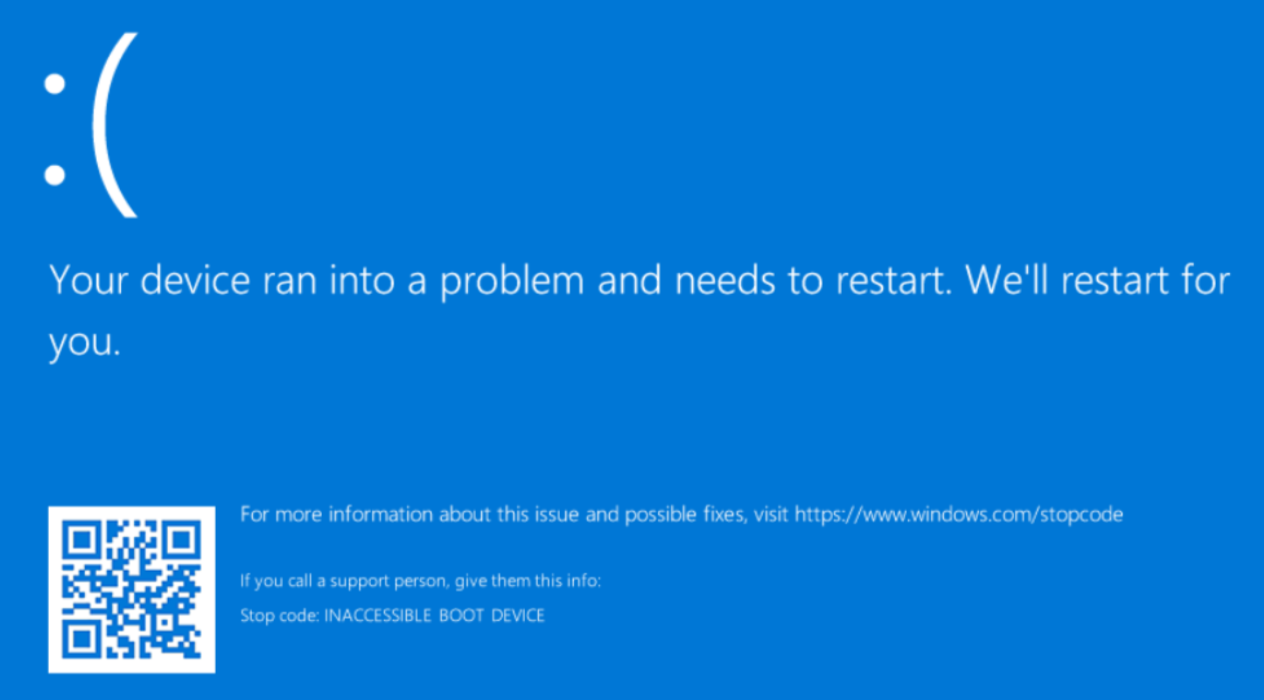
We get the INACCESSIBLE_BOOT_DEVICE stop code.
From here, you will be able to access a recovery environment, and resolve the issue by injecting VirtIO drivers as described in this post from systemfixes.com).
In my specific case however, I needed the disk image to be prepared pre-migration, so this solution doesn’t suffice.
This issue is not exactly surprising, given that the target KVM based hypervisor presents the VirtIO (SCSI) controller, for which our windows machine needs the appropriate VirtIO drivers to recognize.
Sounds like an easy fix! So we download the VirtIO Windows drivers from fedorapeople, mount the ISO in our VM, and install the drivers… To no avail, the same issue occurs when migrating the VM with the newly installed drivers.
Windows Boot Sequence
When you install Windows onto a machine, the installer creates a few different partitions as seen below, two of which are relevant to the boot sequence:
- The system partition uses the FAT32 filesystem which is nearly universally readable by firmware. This partition contains the boot loader files.
- The boot partition uses the NTFS filesystem, and contains the OS files, including the kernel.

According to Windows boot issues troubleshooting - Windows Client | Microsoft Learn, the Windows boot sequence consists of the below phases:
| Phase | Boot Process | BIOS | UEFI |
|---|---|---|---|
| 1 | PreBoot | MBR/PBR (Bootstrap Code) | UEFI Firmware |
| 2 | Windows Boot Manager | %SystemDrive%\bootmgr | \EFI\Microsoft\Boot\bootmgfw.efi |
| 3 | Windows OS Loader | %SystemRoot%\system32\winload.exe | %SystemRoot%\system32\winload.efi |
| 4 | Windows NT OS Kernel | %SystemRoot%\system32\ntoskrnl.exe |
The preboot stage has the bios hand over control to the windows boot manager, which is found in the system partition.
The phase 2 files can be confirmed easily by using diskpart to assign a drive letter to the system partition, after which you can navigate to the path to confirm.
The windows boot manager in turn finds and runs the windows OS loader on the boot partition, which subsequently loads and hands over control to the Windows kernel.
Note here, that phases 1-3 are all clearly pre-kernel, are capitalizing on the UEFI/BIOS driver compatibility to read the disk.
So in phase 3, before handover to the Windows kernel, everything needed to prepare the kernel for communicating with the disk needs to be preloaded into RAM, which is exactly what winload does.
It loads the kernel, boot-critical drivers, and registry system hive into memory, so everything is prepared for handover of control to the kernel.
It is most likely here, after handover of control to the kernel, during the 45th step of the kernel initializations first phase that we fail:
… All the boot-start drivers are enumerated and ordered while respecting their dependencies and load-ordering. (Details on the processing of the driver load control information on the registry are also covered in Chapter 6 of Part 1.) All the linked kernel mode DLLs are initialized with the built-in RAW file system driver. At this stage, the I/O manager maps Ntdll.dll, Vertdll.dll, and the WOW64 version of Ntdll into the system address space. Finally, all the boot-start drivers are called to perform their driver-specific initialization, and then the system-start device drivers are started. The Windows sub-system device names are created as symbolic links in the object manager’s namespace. …
— Allievi, A et al. Windows Internals, Part 2, 7th edition, chapter 12.
The exact mechanism of driver enumeration and device-to-driver binding and preparation is, to the best of my knowledge, undocumented. There is scattered information to be found from official MS docs, blogs and third party sites, most of which I have listed in the References section.
Root Cause
After installing the virtio-win-guest-tools on my VM, the drivers are merely staged, and not properly installed into the system32/drivers directory, nor registered in the registry hive, as can be seen from the absence of associated registry keys.
So there is no chance for winload to load the required information for the kernel to initialize the drivers.
Now, if we take a look at a golden image, that runs on the target hypervisor. We see that the boot critical viostor driver is registered under
HKLM\SYSTEM\CurrentControlSet\Services\viostor
And this key contains the ENUM subkey, with an entry pointing to ROOT\SCSIADAPTER\0000.
On inspecting
HKLM\SYSTEM\CurrentControlSet\Enum\ROOT\SCSIADAPTER\0000
we see various interesting entries, such as a reference to the associated driver, service and most importantly, the associated hardwareid. This presence of a hardware - driver mapping, is consistent with the findings of other alternative fixes I have seen, there are two solutions that have been employed by others:
- Post-migration in the recovery terminal, as described in the referenced systemfixes post.
- Pre-migration stage, if you have access to a method to change the physical or virtualized boot device, as described in this post from superuser.
Everything suggests that Windows simply REQUIRES the associated hardware to be present to properly install and register boot critical drivers. Which raises the question, can we prepare a VM pre-migration, via some sort of hardware impersonation?
Hardware Impersonation
Clearly it must be possible to achieve proper hardware installation and initialization without access to the actual hardware, the question is just whether this is doable without manually setting all the appropriate registry keys.
Luckily, the answer is yes, and it is not all that difficult.
The predecessor of pnputil, devcon, is able to install a driver with an associated hardware id, as described in example 33 of the DevCon docs Device Console (DevCon.exe) Examples - Windows drivers | Microsoft Learn.
Hardware Profiling
To get the relevant information about the SCSI controller hardware, get access to a functioning Windows VM hosted on the target cloud platform, and run:
Get-WmiObject Win32_SCSIController | Where {$_.Name -like "*SCSI*"} | Format-List Name,Manufacturer,DriverName,PnPDeviceIDIn the case of IONOS, this yielded:
Name         : Red Hat VirtIO SCSI controller
Manufacturer : Red Hat, Inc.
DriverName   : viostor
PnPDeviceID  : PCI\VEN_1AF4&DEV_1001&SUBSYS_00021AF4&REV_00\3&13C0B0C5&0&28
Where the PnPDeviceID is the PCI device identifier, the naming taxonomy is as described in Identifiers for PCI Devices - Windows drivers | Microsoft Learn.
VEN_{VENDOR_ID} Refers to the specific vendor of the device, where the vendor ID of 1AF4 references Red Hat, Inc. And DEV_{DEVICE_ID} refers to the specific device type, with 1001 being the VirtIO block device. As described in the PCI ID Repository.
The remaining identifiers are more specific than what is needed to recognize the need for the viostor driver.
Solution
Armed with the destination storage controller hardware ID, or even just the more generic storage controller class ID: PCI\VEN_1AF4&DEV_1001, we can properly install the driver pre-migration like so:
devcon64 install PATH_TO\viostor.inf "PCI\VEN_1AF4&DEV_1001"For a fully automated powershell script to prepare a VM, mount the virtio-win-guest-tools ISO and run the following powershell script:
# Script constants
$REQUIRED_DRIVERS = @("balloon.inf", "vioser.inf", "viostor.inf", "netkvm.inf")
$VIRTIO_HARDWARE_ID = "PCI\VEN_1AF4&DEV_1001" # Hardware ID for Red Hat VirtIO SCSI controller
$VIRTIO_ROOT_ID = "ROOT\VIOSTOR\0000"

function Write-Status {
    param([string]$Message, [string]$Type = "Info")
    $colors = @{ Info = "Cyan"; Success = "Green"; Warning = "Yellow"; Error = "Red" }
    Write-Host "[$Type] $Message" -ForegroundColor $colors[$Type]
}

function Exit-WithCode {
    param([int]$Code, [string]$Message)
    if ($Message) { Write-Status $Message -Type $(if ($Code -eq 0) { "Success" } else { "Error" }) }
    exit $Code
}

function Find-VirtIOMedia {
    try {
        $cdroms = Get-CimInstance -ClassName Win32_CDROMDrive -ErrorAction Stop
        foreach ($drive in $cdroms) {
            if ($drive.VolumeName -like "virtio-win*" -and $drive.Drive) {
                return $drive
            }
        }
        return $null
    }
    catch {
        throw "Failed to query CD-ROM drives: $($_.Exception.Message)"
    }
}

function Install-VirtIOGuestTools {
    param([object]$Drive)

    $installerPath = Join-Path $Drive.Drive "virtio-win-guest-tools.exe"

    if (-not (Test-Path $installerPath)) {
        throw "Installer not found at: $installerPath"
    }

    Write-Status "Installing VirtIO guest tools from $installerPath"

    try {
        $process = Start-Process -FilePath $installerPath -ArgumentList "/passive", "/norestart" -Wait -PassThru

        Write-Status "Installer completed with exit code: $($process.ExitCode)" -Type "Info"
    }
    catch {
        throw "Failed to install guest tools: $($_.Exception.Message)"
    }
}

function Test-DriverInstallation {
    Write-Status "Verifying driver installation..."

    try {
        $installedDrivers = pnputil.exe /enum-drivers 2>$null |
            Select-String -Pattern "Original Name:" |
            ForEach-Object { ($_.Line -split ":\s*", 2)[1].Trim().ToLower() }

        $missingDrivers = @()

        foreach ($driver in $REQUIRED_DRIVERS) {
            if ($driver.ToLower() -in $installedDrivers) {
                Write-Status "  $driver is installed" -Type "Success"
            }
            else {
                Write-Status "  $driver is NOT installed" -Type "Warning"
                $missingDrivers += $driver
            }
        }

        return $missingDrivers.Count -eq 0
    }
    catch {
        Write-Status "Failed to verify driver installation: $($_.Exception.Message)" -Type "Error"
        return $false
    }
}

function Install-DevCon {
    Write-Status "Installing DevCon via Chocolatey..."

    try {
        if (-not (Get-Command choco -ErrorAction SilentlyContinue)) {
            Write-Status "Installing Chocolatey..."
            [System.Net.ServicePointManager]::SecurityProtocol = [System.Net.ServicePointManager]::SecurityProtocol -bor 3072
            Invoke-Expression ((New-Object System.Net.WebClient).DownloadString('https://community.chocolatey.org/install.ps1'))
        }

        & choco install devcon.portable -y
        if ($LASTEXITCODE -ne 0) {
            throw "Chocolatey installation failed with exit code: $LASTEXITCODE"
        }

        Write-Status "DevCon installed successfully" -Type "Success"
    }
    catch {
        throw "Failed to install DevCon: $($_.Exception.Message)"
    }
}

function Get-DevConExecutable {
    # Determine architecture and return appropriate devcon executable
    $devconName = if ([Environment]::Is64BitOperatingSystem) { "devcon64.exe" } else { "devcon32.exe" }

    # Try to find devcon in PATH first
    $devcon = Get-Command $devconName -ErrorAction SilentlyContinue
    if ($devcon) {
        return $devcon.Source
    }

    # If not in PATH, refresh environment and try again (needed after fresh Chocolatey install)
    $env:Path = [System.Environment]::GetEnvironmentVariable("Path", "Machine") + ";" + [System.Environment]::GetEnvironmentVariable("Path", "User")
    $devcon = Get-Command $devconName -ErrorAction SilentlyContinue
    if ($devcon) {
        return $devcon.Source
    }

    throw "DevCon executable ($devconName) not found. Installation may have failed."
}

function Test-VirtIOHardware {
    param(
        [string]$HardwareId = $VIRTIO_HARDWARE_ID
    )

    try {
        $devcon = Get-DevConExecutable
        $output = & $devcon hwids "$HardwareId"
        $output | Out-Host

        $found = $output -like "*$HardwareId*"

        if ($found) {
            Write-Status "VirtIO hardware '$HardwareId' found" -Type "Success"
            return $true
        }
        else {
            Write-Status "VirtIO hardware '$HardwareId' not found" -Type "Warning"
            return $false
        }
    }
    catch {
        Write-Status "Failed to check VirtIO hardware: $($_.Exception.Message)" -Type "Error"
        return $false
    }
}

function New-PhantomVirtIODevice {
    Write-Status "Checking for existing VirtIO hardware..."

    # Check if we already have the hardware
    if (Test-VirtIOHardware) {
        Write-Status "VirtIO hardware already present - no phantom device needed" -Type "Success"
        return
    }

    Write-Status "Creating phantom VirtIO SCSI Controller..."

    try {
        $devcon = Get-DevConExecutable

        # Find viostor driver directory
        $driverStore = Join-Path $env:SystemRoot "System32\DriverStore\FileRepository"
        $viostorDir = Get-ChildItem -Path $driverStore -Directory |
            Where-Object { $_.Name -like "viostor.inf_*" } |
            Select-Object -First 1

        if (-not $viostorDir) {
            throw "VirtIO storage driver directory not found in driver store"
        }

        $infPath = Join-Path $viostorDir.FullName "viostor.inf"

        Write-Status "Using driver: $infPath"
        Write-Status "Attempting PCI device installation..."

        # Method 1: Try direct PCI installation
        & $devcon install $infPath $VIRTIO_HARDWARE_ID

        if ($LASTEXITCODE -eq 0) {
            Write-Status "PCI device created successfully" -Type "Success"
        }
        else {
            Write-Status "PCI method failed, trying root enumeration..." -Type "Warning"

            # Method 2: Root-enumerated device
            & $devcon install $infPath $VIRTIO_ROOT_ID

            if ($LASTEXITCODE -eq 0) {
                Write-Status "Root device created, updating hardware ID..."

                # Update hardware ID
                & $devcon sethwid "@$VIRTIO_ROOT_ID" ":=" $VIRTIO_HARDWARE_ID

                if ($LASTEXITCODE -eq 0) {
                    Write-Status "Hardware ID updated successfully" -Type "Success"
                }
                else {
                    Write-Status "Failed to update hardware ID" -Type "Warning"
                }
            }
            else {
                throw "Both installation methods failed"
            }
        }

        # Verify device creation
        Write-Status "Verifying phantom device creation..."
        if (-not (Test-VirtIOHardware)) {
            throw "Failed to create phantom VirtIO device - hardware ID not found after installation"
        }

        Write-Status "Phantom VirtIO device created successfully" -Type "Success"

    }
    catch {
        throw "Failed to create phantom device: $($_.Exception.Message)"
    }
}

try {
    Write-Status "Starting VirtIO driver installation process..."

    Write-Status "Searching for VirtIO installation media..."
    $virtioMedia = Find-VirtIOMedia

    if (-not $virtioMedia) {
        Exit-WithCode -Code 1 -Message "No virtio-win media found. Please mount the VirtIO driver ISO."
    }

    Write-Status "Found VirtIO media: $($virtioMedia.VolumeName) on drive $($virtioMedia.Drive)" -Type "Success"

    Install-VirtIOGuestTools -Drive $virtioMedia

    Write-Status "Verifying installation success..."
    $driversInstalled = Test-DriverInstallation

    if (-not $driversInstalled) {
        Write-Status "Driver verification failed - some required drivers are missing. Installation may have failed." -Type "Warning"
        Write-Status "Continuing with phantom device creation to attempt driver loading..." -Type "Info"
    }
    else {
        Write-Status "Driver installation verified successfully!" -Type "Success"
    }

    Install-DevCon

    New-PhantomVirtIODevice

    Exit-WithCode -Code 0 -Message "VirtIO driver installation completed successfully!"
}
catch {
    Exit-WithCode -Code 2 -Message "Installation failed: $($_.Exception.Message)"
}
References
- MS Blog Post: Critical Device Database Tip
- Add drivers before deployment on an offline Windows image by using DISM: Device Drivers and Deployment Overview | Microsoft Learn
- Offline Windows Image installation: Add and Remove Driver packages to an Offline Windows Image | Microsoft Learn
- Install a Boot-Start Driver - Windows drivers | Microsoft Learn
- Extraction of CDDB: Windows on iSCSI - Part 3/3 — Cyberus Technology
- Windows Internals Part 2 7th edition, chapter 12: Startup and shutdown.